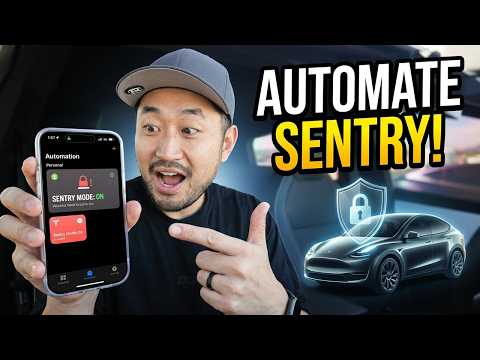
What if you could schedule your Tesla's Sentry Mode to turn on every night at 12:15 a.m. and off at 6:15 a.m., all without relying on the car's GPS or manually tapping your phone? That's exactly what I do with this simple "Tesla Sentry Mode Apple Shortcut," and it's a game-changer for anyone parking on the street or at work during specific hours.
I've been using Apple Shortcuts for Tesla automation for a while now, especially with vehicles parked in riskier spots. No more forgetting to enable Sentry Mode or draining your battery unnecessarily during the day. This "Apple Shortcuts Tesla automation" lets you "schedule Tesla Sentry Mode" precisely when you need it. In this Tesla vehicle shortcuts guide, I'll walk you through setting it up step-by-step so you can "automate Tesla Sentry on off" effortlessly with the "iOS shortcuts Tesla app" integration.
Why Bother with a Tesla Sentry Mode Apple Shortcut?
Sentry Mode is brilliant—it records threats to your Tesla with cameras and alarms—but it's battery-hungry if left on 24/7. The built-in schedules rely on location, which isn't always perfect, like if you're at work or street parking without a fixed "home" spot. That's where this shortcut shines. I used it on a car parked on the street: on at midnight to catch any late-night shenanigans, off at dawn to save juice.
It's not just Sentry. Apple Shortcuts opens up a world of Tesla hacks—preconditioning AC before your commute, checking battery levels, or even honking the horn remotely. But let's focus on the star: the "Tesla Sentry Mode Apple Shortcut."
Step-by-Step: Create Your Sentry Mode On Automation
Grab your iPhone or iPad— this works on iOS 17+ with the official Tesla app installed and logged into your vehicle.
-
Open the Shortcuts App: Search for "Shortcuts" in Spotlight or find it in your app library. It's pre-installed on iPhones.
-
Tap the Automation Tab: At the bottom, switch to "Automation." This is where the magic happens for time-based triggers, unlike regular shortcuts.
-
Create a New Personal Automation: Hit the "+" icon, then select "Create Personal Automation." Choose "Time of Day."
-
Set Your Trigger Time: Pick "12:15 AM" (or whatever suits your schedule). Set it to repeat "Daily." For street parking, I like midnight-ish when things quiet down. Enable "Run Immediately" so it fires without asking.
-
Add the Tesla Action: Tap "Add Action," search for "Tesla." You'll see options from the Tesla app integration. Select "Set Sentry Mode" or "Open Tesla App to Sentry"—the exact phrasing is "Control Sentry Mode."
-
Configure Sentry On: Choose your vehicle if you have multiples, then set it to "Turn On." Test it by running the shortcut manually first.
-
Save and Done: Hit "Done." Boom—your Tesla Sentry Mode Apple Shortcut now auto-activates nightly.
Test it: Park somewhere safe, wait for the time (or trigger manually), and check your Tesla app. Sentry should light up those cameras.
Step-by-Step: Create Your Sentry Mode Off Automation
Rinse and repeat for turning it off—vital to avoid phantom drains.
-
New Automation Again: Back in Shortcuts > Automation > "+" > "Time of Day."
-
Set Off Time: Say, "6:15 AM" daily. Adjust for your routine—earlier if you're an early riser.
-
Add Tesla Action: Same as before, "Control Sentry Mode" > Select vehicle > "Turn Off."
-
Run Immediately: Crucial—no prompts at dawn!
-
Save It: Now your full "schedule Tesla Sentry Mode" loop is live.
I ran this for months on a street-parked Tesla. Peace of mind without constant monitoring. Pro tip: Name them clearly, like "Sentry Night On" and "Sentry Dawn Off."
Advanced Tweaks for Apple Shortcuts Tesla Automation
Want more? Layer in conditions.
-
Multiple Vehicles: Shortcuts detects all your Teslas. Pick per shortcut.
-
Notifications: Add a "Show Notification" action post-Sentry toggle: "Sentry activated—your Tesla's watching."
-
Battery Check: Before turning on, add "Get Battery Level from Tesla" > If below 30%, skip or notify.
Pro Tips for Your Tesla Vehicle Shortcuts Guide
I've experimented a ton—here's what works best:
-
Other Killer Automations: Precondition AC at commute time. Action: "Climate" > "Turn On" at 7 AM. Feels luxurious pulling into a cool cabin.
-
Location Fallback: Combine with "Arrive" triggers for home/work, but time-based is king for streets.
-
Battery Savings: Sentry sips ~1% per hour idle. My overnight schedule? Negligible drain.
-
Share Shortcuts: Export yours via iCloud link. I share mine in this video—tap to import directly.
-
Troubleshoot: Ensure Tesla app notifications are on. Re-authenticate if actions fail.
-
Cybertruck Bonus: This works on my Cybertrucks too. With free lifetime Supercharging on one (we've saved ~$500/month vs. home rates over 11,900 kWh in 7 months), automations like this keep it secure during road trips.
Don't sleep on exploring the Tesla app's deep Shortcuts integration—unlock honks, unlocks, even software update checks.
Bottom Line
This "Tesla Sentry Mode Apple Shortcut" is dead simple yet powerful "Apple Shortcuts Tesla automation." No more manual toggles, no GPS guesswork—just set it and forget it. Perfect for street parking, work lots, or anywhere timing matters. I've leveled up my Tesla game with it, and you'll too. Dive in, experiment, and drop your custom shortcuts in the comments.
Watch me demo it live: Here's a Cool Tesla Apple Shortcut I Use (Sentry Mode).
Some links are affiliate links that support the channel at no cost to you.